Support
Documentation
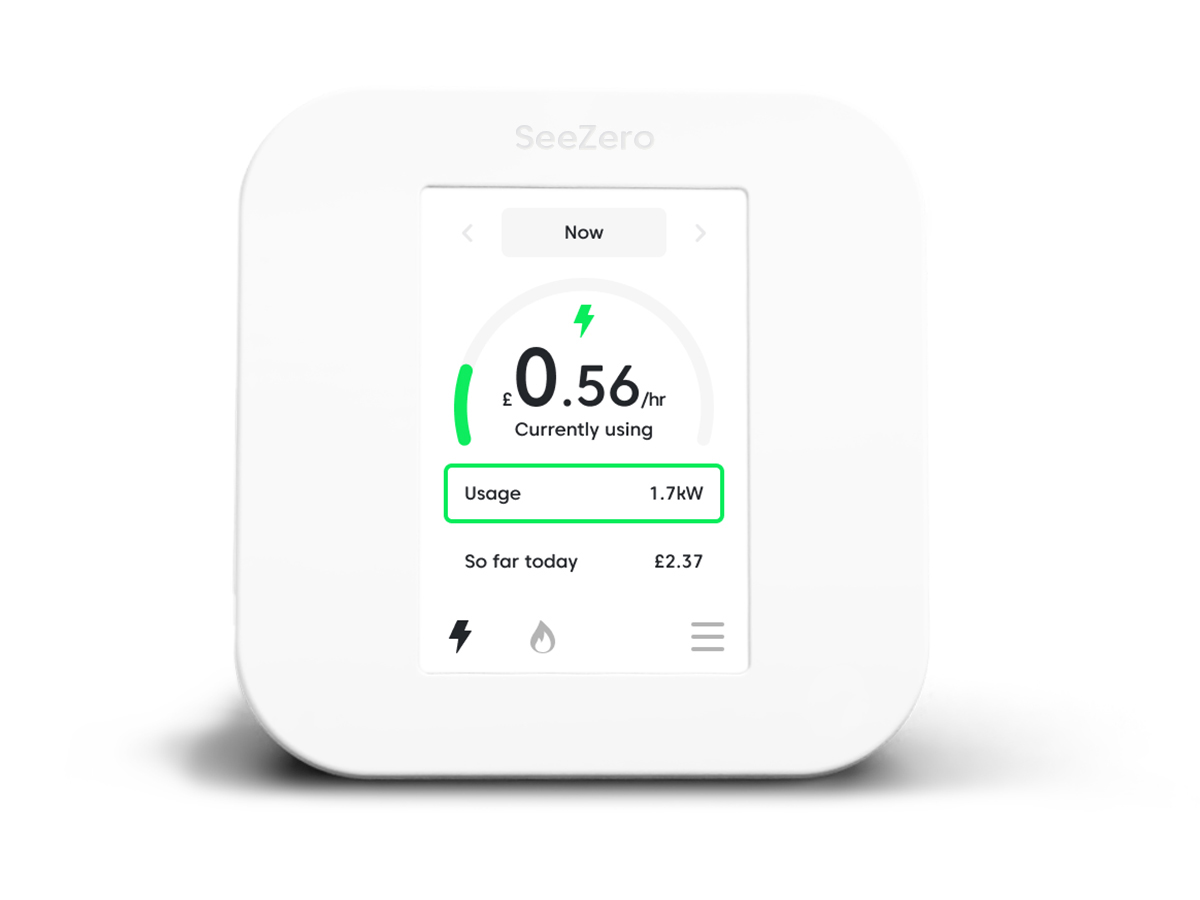
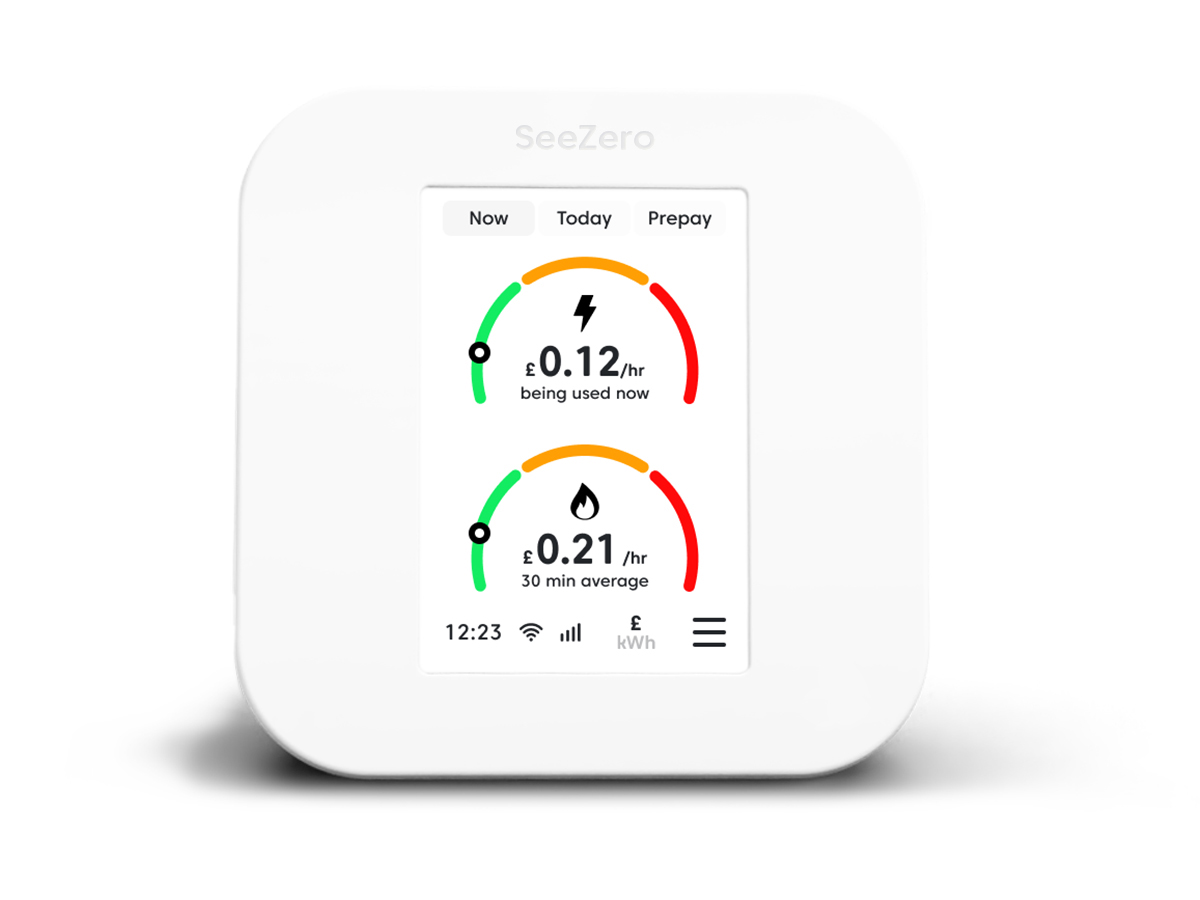
Why does my SeeZero, that I received from my energy supplier, look different to the one shown in the user guide below?
We’re continually working with energy suppliers to improve SeeZero and add new features. Updates are sent automatically to compatible devices, but available features may vary depending on your energy supplier. To receive the latest improvements, please keep your SeeZero connected to Wi‑Fi.
SeeZero Display Quick Start Guide
SeeZero Display Set-up Guide
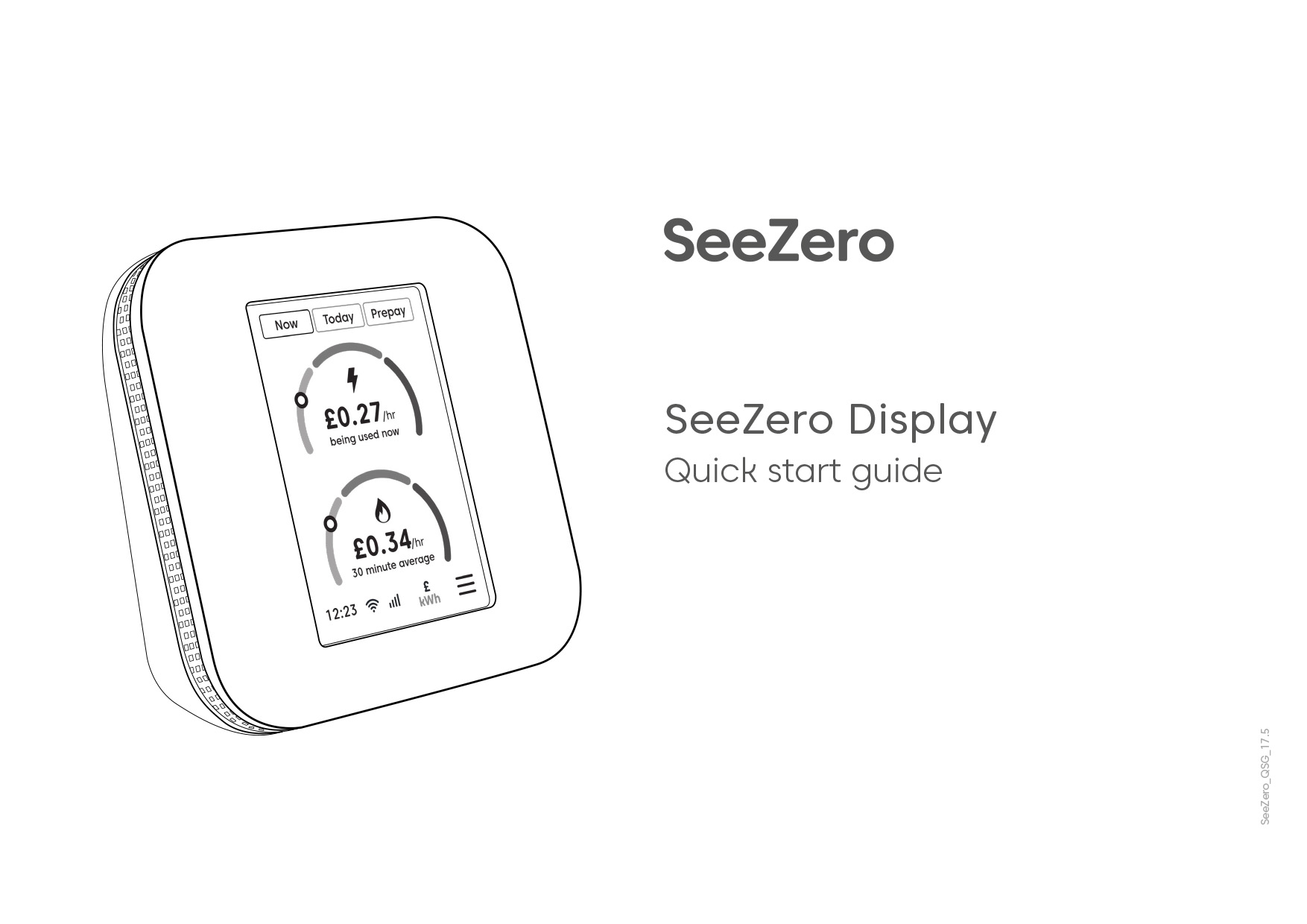
SeeZero Display Quick Start Guide
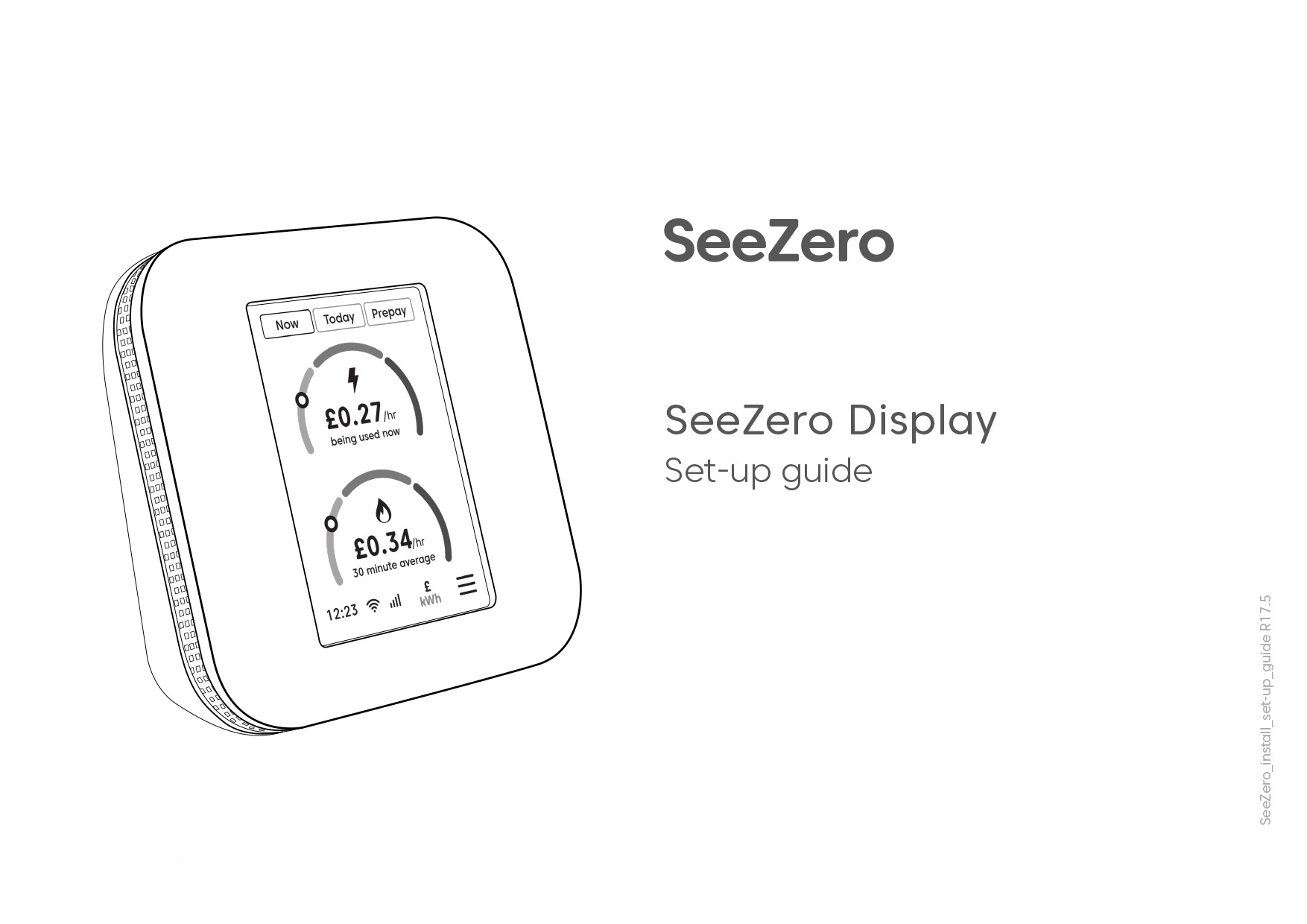
SeeZero Display Set-up Guide
FAQs
No results found.
IHD replacement service
If you purchased your SeeZero directly from the SeeZero website, the information and troubleshooting
guidance in this section applies to you.
If you received your SeeZero through your energy supplier, please contact them directly for help
with commissioning, pairing or smart meter communication issues
The compatibility check looks at information held within the smart meter network.
A property may fail the check if:
- Your smart meter isn’t currently communicating
- Your address can’t be matched correctly
- The smart meter details held by the network are incomplete
- Your meter isn’t currently supported
If you believe the result is incorrect, please contact the SeeZero support team: support@seezero.com
Some properties, particularly those with house names, recently changed addresses or unusual address formats, may not match the records held within the smart meter network.
If your address isn’t found, please contact the SeeZero support team: support@seezero.com and we’ll investigate further.
Yes. Smart meter communications can occasionally be unavailable temporarily.
If a compatibility check fails because your smart meter isn’t communicating, it may be worth trying again later.
If the issue persists, please contact the SeeZero support team: support@seezero.com
Before SeeZero can connect to your smart meters, we need your permission to access smart meter data.
This is part of the onboarding process and helps us securely link your device to your smart meters.
If the consent process hasn’t been completed, your SeeZero will not be able to commission or connect.
If you need assistance with the consent process please contact the SeeZero support team: support@seezero.com
Once you’ve received your SeeZero:
- Complete the consent process if you haven’t already.
- Plug the device into a power socket close to your smart meters.
- Connect it to your home Wi Fi.
- Allow time for the device to commission and connect.
Once connected, your SeeZero will begin receiving data from your smart meters.
Note: Above guidance is for purchases of SeeZero directly from the SeeZero website. If you received your SeeZero via your energy retailer then please contact them if you’re having trouble with commissioning and connecting to your smart meters.
Once commissioning is complete, your SeeZero will begin displaying data from your smart meters.
If you’re having trouble, please contact the SeeZero support team: support@seezero.com
Setting up your SeeZero
The battery is mainly there as a backup in case of power cuts. We recommend having the power cable plugged in. The Wi-Fi is also disabled when running on battery.
Not Commissioned means your energy supplier has not yet joined the In-Home Display to your meters, please leave your In-Home Display connected to the mains, and it should be commissioned in the next few days, if this has not happened, please contact your energy supplier or whoever supplied you the SeeZero.
If your SeeZero shows “awaiting data”, it usually means it hasn’t fully connected to your smart meters yet.
This can happen shortly after setup or if the connection is still being established.
If this message is displayed after previously showing data it can also mean that it has lost connection with the smart meters.
For help, it depends where your SeeZero came from:
- If you purchased your SeeZero directly from the SeeZero website then please contact the SeeZero support team: support@seezero.com
- If you received your SeeZero through your energy supplier please contact them directly for help with commissioning issues
- If you purchased your SeeZero directly from the SeeZero website then please contact the SeeZero support team: support@seezero.com
- If you received your SeeZero through your energy supplier please contact them directly for help with commissioning issues
General usage
Yes, the meter readings can be seen on the device, under System Info > Meter information.
Connection issues
This could be due to the following:
- The display is out of range of the Wi-Fi network, or it is not available – try moving closer to the access point or router
- The security details for the configured Wi-Fi network have changed since they were setup
- The display details have been actively blocked by the Wi-Fi network
- The display is running on batteries – the Wi-Fi module does not function when running on batteries
The In-Home Display is connected to the communications hub, which is part of the electricity meter, so moving the In-Home Display closer to the electricity meter should help.
Your monitor may be off for several reasons:
Under Settings > Display + Brightness, if you have selected the Backlight to be off or the Backlight timer setting to be on, then the screen will be blank when you are not using it (or it is scheduled to be off). Tapping the screen will wake it up in this case.
If batteries are powering the monitor, then it may be that they have run flat. Please connect the In-Home Display using the supplied power adapter. As soon as the display is connected to mains power and you tap the screen, it should switch on.
If the device is not responsive, please disconnect the In-Home Display from using the supplied power adapter, then press and hold the button on the back of device for 10 seconds. Wait 1 minute. Press and hold the button on the back until the screen wakes up. Plug the device back into the supplied power adapter. This will force the device to reboot.
A 20-1 error on the ‘Meter network’ means SeeZero has not been commissioned (connected) to your smart meters.
For help, it depends where your SeeZero came from:
- If you purchased your SeeZero directly from the SeeZero website then please contact the SeeZero support team: support@seezero.com
- If you received your SeeZero through your energy supplier please contact them directly for help with commissioning issues
Budget and seasonal adjustment
You can set your budget through Settings > Budget, you can set a daily, weekly or monthly budget and also apply Seasonal adjustment to the budget.
Budgets are seasonally adjusted to consider higher energy usage during winter months and lower usage during summer months. You can choose in the budget input process to have the seasonal adjustment factor applied (or not applied) to your budget input.
Solar exporting
Yes the SeeZero In-Home Display will show ‘Exporting’ on the Electricity Live screen.
Moving house?
Please leave the SeeZero at the home it was originally used in as it will not work at your new home.